

Cinematic Dialogue Tools
Overview
 Unreal Engine
 C++
C++Description
The following systems were built to work together and create a cinematic branching dialogue experience for players:
Dialogue Editor: A dialogue editor for efficiently creating branching conversations, with visual feedback
Dialogue Runtime System: The in-game system that traverses dialogue nodes and triggers events as conversations play out.
Dynamic Camera System: A camera obstruction detection system to select the best possible camera shots for dynamic conversations.
Dialogue Editor
Unreal EngineC++Description
The Dialogue Editor is an asset editor for branching dialogue conversations. Once you open a dialogue asset, Dialogue Editor provides you with a graph for adding new conversation nodes, a per-node timeline for sequencing animations and events, and a live preview viewport for iterating on conversations without having to enter the game.
Technical Details
The editor is implemented as an FAssetEditorToolkit, with a custom node graph built in Slate. Each node stores speaker data, dialogue text, audio references, animation sets, event data, camera instructions, and connections to other nodes. Node widgets themselves are built as custom Slate widgets.
Conversations are stored as a Data Asset, and they contain an array of Dialogue Node structs. Each node stores all relevant data, and most importantly an array of link IDs pointing to connected nodes.
Each node comes with its own timeline, with separate tracks for animations, camera instructions, and gameplay events. Key frames on each track control exactly when these events fire during that node’s playback, and have an editable properties panel to set event parameters. A live preview viewport sits alongside the timeline, and is auto-populated with the participants who are in the conversation. The participants will perform any animation keys in real time as the track is scrubbed.
Dialogue Runtime System
Unreal EngineDescription
The dialogue runtime system is responsible for actually running the conversations. It processes data from the custom dialogue assets that were created using the dialogue editor (or imported automatically using other custom dialogue pipeline tools), and displays it to the player.
Technical Details
The runtime system is implemented as a Blueprint widget graph. When a conversation starts, the system loads the target dialogue data asset, and begins node traversal. Each node’s timeline data is read and sequenced using time offsets on a timer, matching the playback seen in the dialogue editor. When a node is being done evaluated, the system will update the UI and process the next linked node.
Dynamic Camera System
 Unreal Engine
Description
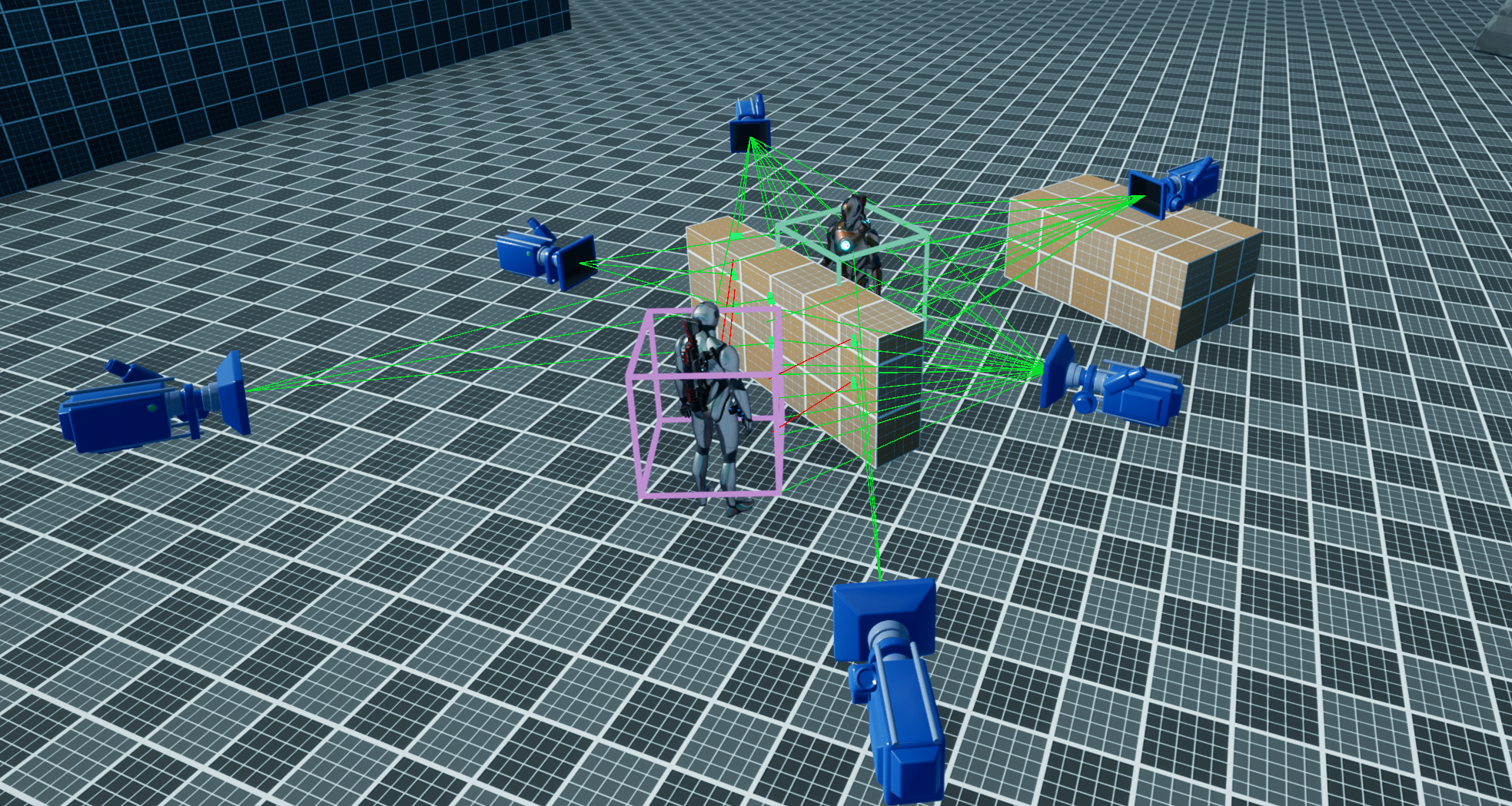
The dynamic camera system automatically handles camera placement for any conversation, regardless of where it takes place in the world. The system evaluates the scene at runtime, and selects the best unobstructed camera shot. Camera changes are configured per node by adding camera key frames. Conversation participants can and will (if desired) be repositioned if they are obscured, too close, or too far away from each other.
Technical Details
Before the conversation begins, participants are evaluated for positioning. If they are too close or too far away, the conversation will not begin yet, since it would create awkward or undesired camera shots. If that was the case, the participants will find a desirable point to relocate to using EQS queries, and navigate to them using the NavMesh.
When a conversation starts, the system spawns a camera manager that places multiple candidate cameras around the participants. Two cameras facing towards each participant from different angles, and two side cameras positioned between the participants. Each camera then raycasts a 3 x 3 grid of rays towards a collision box aligned to their respective participant, scoring itself based on how many rays reach their target unobstructed. The middle three vertical points are required to be unobstructed for the camera to be valid. Additional unobstructed points contribute to a higher score.
When the active conversation requests a camera, scores are compared and the highest valid camera is selected, preferring the type of camera requested by camera key frames (Side camera, NPC #1 camera, etc).